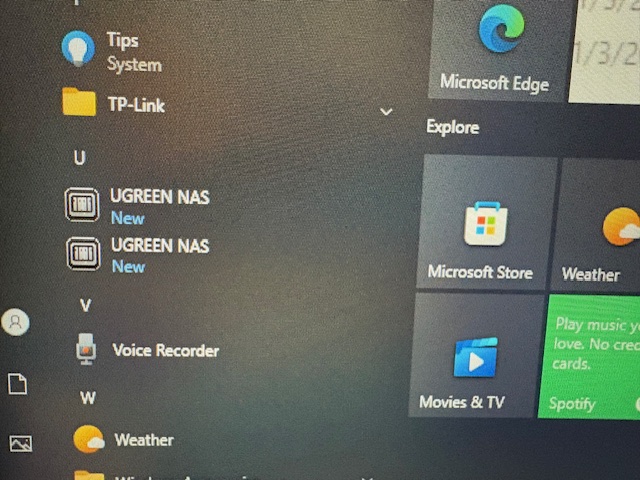
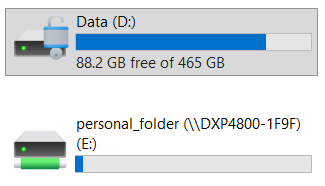
Oh my, I don’t even know where to start…
It’s obvious that you have no idea what you have bought or how networking works.
If some random person on the internet tells you that, yes, you need it, will you listen?
If you want to use your NAS like most people do, yes, you do need to enable SMB and WWSD2 (the latter has nothing to do with Netgear and it’s normally enabled automatically when SMB is turned on, on products from other NAS brands). Map a drive or a folder on each and every computer you want to access the NAS from, as then they can all access the same files on the NAS, through that mapped drive or folder.
You clearly don’t understand how IP addresses work either. It was not “set up” during the installation, it was assigned by your router, as your router has something called a DHCP server that assigns IP addresses to devices that are connected to your home network. Without it, your devices wouldn’t be able to get an IP address, unless you somehow could manually assign one to a device, something you can, but shouldn’t do, in Windows or macOS as an example. As I don’t know what kind of router you have, I can’t give you any advice on how to assign a fixed IP address for your NAS, but trust me, you really want to do this, or it will be jumping around using different IP addresses, which is a pain.
If you work with a lot of different versions of files, I suggest you also install the File Version Explorer which you can find in the App Center, it should keep track of all the different file versions on the NAS for you.
I’m also not sure what kind of network you have, but the DXP 4800 might not be fast enough for edition video over its 2.5 Gbps Ethernet interface, so you’re going to be spending a lot of time copying files back and forth for editing. If you don’t already own a 2.5 Gbps capable router or switch, I suggest investing in one.
No, you don’t need a USB device to access your content when away from home, as long as you leave your NAS running, there are multiple options. If you trust Ugreen, they have a service called Ugreenlink which you find under Device Connection and Remote Access in the Control Panel. That would most likely be the easiest way for you to access your files when not at home, but keep in mind that it relies on your internet connection, so if you have a slow internet connection, this might not be ideal and a USB drive might be preferred.
No, Plex is not at all needed. Again, there are multiple ways of doing this. The least complex, assuming you have a modern-ish smart TV, is to install the DLNA app, enable the service and select the directories on your NAS that you want to share and then start the media player on your TV and find your NAS via it. It would also show up as a media device on your PC under Network in Explorer.
More advanced options include Jellyfin (entirely free) and Emby (some parts are charged for) or Plex (some parts are charged for). I will not even start trying to instruct you on how to install those and all three also require an app on your TV. All three are quite complex, but also quite advanced, but considering your basic know how about what you have bought, I suggest you wait a bit with those. Ugreen also has its own Theatre app, but from what I have tried, it requires you to connect that NAS via HDMI to your TV and then use the mobile app to start the playback.
I suggest a visit here, to read up on the various apps available on your NAS. 绿联云知识中心
It’s not a dodgy link, you can thank Ugreen for it showing up in simplified chinese.